Most PokeBonk problems fall into a few groups: the game won’t load, it runs badly, the controls stop responding, or progress looks wrong. Find your symptom below and work through the steps in order. Nearly everything is fixed by the first or second step.
Quick fixes table
| Symptom | First thing to try |
|---|---|
| Stuck on “Loading Pokédex…” | Wait 10–20 seconds, then press Reload |
| “No connection to the server” | Press Retry in the game, then Reload |
| “Under maintenance” | Leave it open, it rechecks every 30 seconds |
| Black screen | Turn on hardware acceleration, try Chrome or Edge |
| Low frame rate | Settings → Graphics → Quality Low |
| Keys do nothing | Click once inside the game window |
| Character keeps moving | Update to the current version (reload) |
| “Rotate your device” on a phone | Turn the phone sideways |
| Guest progress gone | Go back to the same browser, no private window |
Using the game window on this site
When you press Play PokeBonk, the game opens in a window with a small toolbar. Each button solves a specific problem:
- Reload – restarts the game from scratch. Use it for any loading screen that hangs, a frozen menu, or after an update. It ends the run in progress, so finish or pause first if you can.
- Fullscreen – gives the game the whole screen. Useful on small laptops and when the HUD feels cramped.
- Open in a new tab (desktop) – loads the game in its own browser tab. Try this if keyboard input or the mouse camera feels off inside the window.
- Language (desktop) – switches the game’s text language. Changing it reloads the game.
- Close – closes the game window and takes you back to the page.
On phones
- The game plays in landscape only. Holding the phone upright shows “Rotate your device”. Turn it sideways and the game continues.
- On Android, the game window goes full screen when it opens.
- On iPhone, rotate the phone manually.
The game won’t load
Stuck on “Loading Pokédex…”
This screen means the game is downloading its data. On a slow connection it can take a little while.
- Give it 10–20 seconds.
- Press Reload on the game window.
- Still stuck? Close other tabs that are downloading or streaming, then reload again.
- On mobile, switch between Wi-Fi and mobile data and reload.
“No connection to the server”
The game reached its own server and got no answer. This happens when lots of players are online at once. On October 22, for example, the developer reported a server overload during the Season 2 rush, and the game went briefly into maintenance before coming back.
- Press Retry inside the game.
- If that fails, press Reload.
- Still failing? Wait a few minutes instead of retrying over and over.
A connection error does not wipe your saved progress: your League and Lab upgrades stay safe.
“Under maintenance”
The developer is updating or fixing something. You don’t need to do anything: the game checks again every 30 seconds and returns on its own when the server is back.
Black screen or a very low frame rate
PokeBonk is a 3D game and needs WebGL, the browser feature for 3D graphics.
- Turn on hardware acceleration. In Chrome or Edge it is under Settings → System. Restart the browser afterwards.
- Update your browser. Chrome and Edge are the safest choices.
- Close heavy tabs such as video streams or other games.
- Reload the game. If an update caused a blank screen, the game now recovers by itself after a reload (fixed in v0.8.11), with no need for a hard refresh.
On phones, close other apps before reloading so the game has more memory to work with.
Lag and visual clutter
When a run gets crowded, the screen fills with attacks and effects. Open Settings → Graphics (from the main menu or by pausing) and change one option at a time:
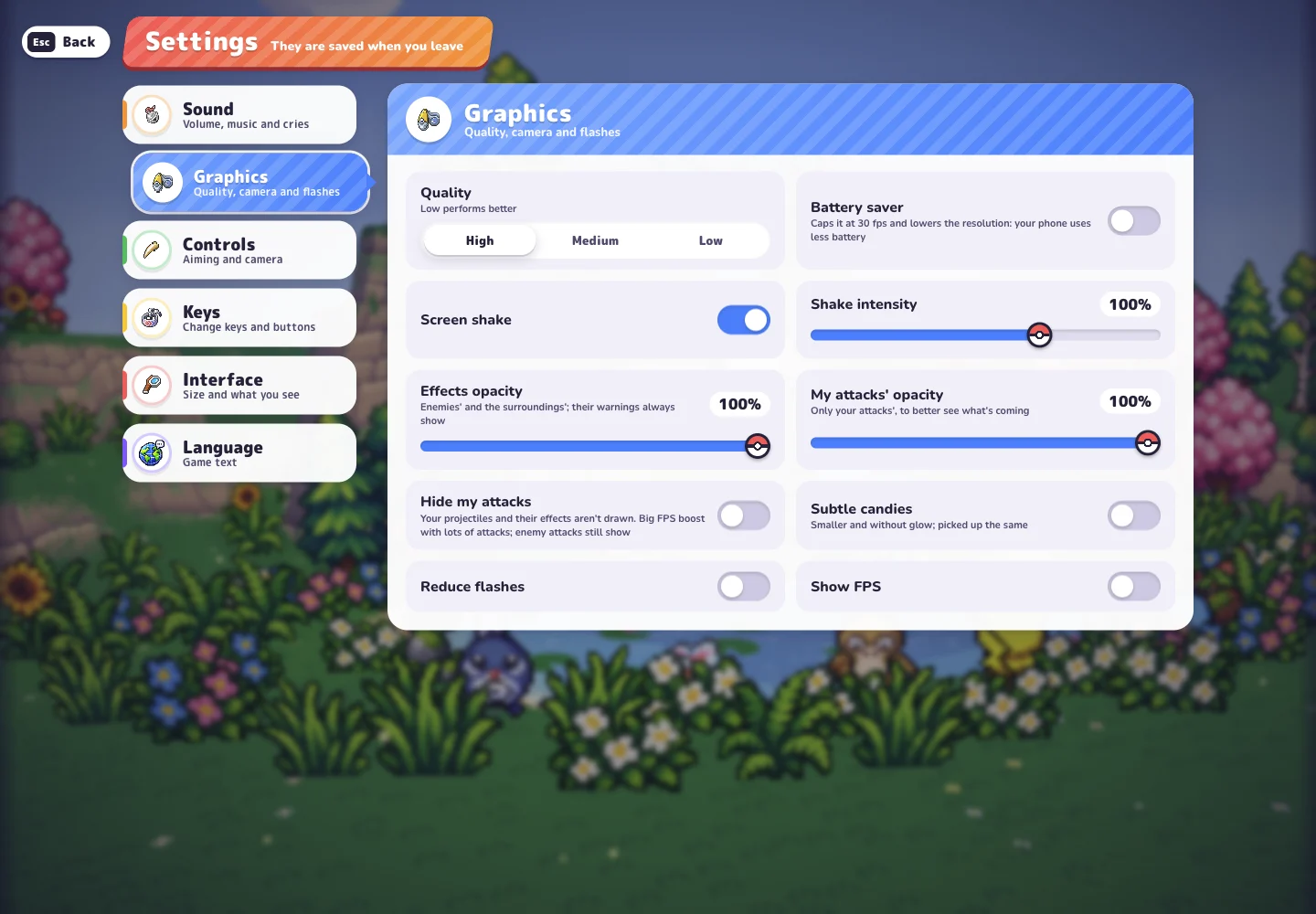
- Quality – set it to Low. This is the biggest single gain.
- Show FPS – turn it on so you can see whether a change actually helped.
- My attacks’ opacity – lower it so your own attacks don’t hide incoming enemies.
- Hide my attacks – stops drawing your projectiles entirely. Enemy attacks still show. This gives a big boost when you have many moves.
- Effects opacity – fades enemy and environment effects. Their warnings always stay visible.
- Reduce flashes – removes full-screen flashes. Effect brightness (added in v0.8.14) tones down bright effects.
- Battery saver – caps the game at 30 FPS and lowers resolution to save phone battery. If your game is stuck at 30 FPS, check this is off.
Keys or controls not responding
- Click inside the game window once. The game needs keyboard focus. If you clicked elsewhere on the page, the keys go there instead.
- Use WASD or the arrow keys. The arrow keys always move, even if you remapped WASD.
- Check your bindings in Settings → Keys. If something feels wrong, the Reset option restores the defaults.
- Character keeps walking after you close a menu? This was fixed in v0.8.17. Reload to get the current version.
- Level-up cards getting picked by accident? The level-up shortcuts are F (reroll), X (skip) and Z (banish). Old videos show R / S / B, which no longer apply. Banish asks for confirmation.
- Camera too fast or upside down? Adjust mouse sensitivity and Invert Y in Settings → Controls. If the mouse camera misbehaves inside our window, try Open in a new tab.
- Controller drifting? Adjust the controller dead zone in Settings → Controls.
Our getting started guide has the full controls table.
Saves and guest progress
My guest progress disappeared
Guest progress belongs to the browser and device you played on. It looks lost when you:
- open the game in a different browser or a private / incognito window,
- clear site data or cookies,
- switch to another phone or computer.
Go back to the same browser first. To protect your progress for good, use Save to account from your guest session. Guest profiles that stay unused for 60 days are deleted.
A run didn’t save
Results are kept when your tab closes, refreshes or loses connection, and sent when you return. Reload in the same browser and check your history before assuming it is lost. If it is still missing, use the in-game Report button with your version, mode, region, partner and the time of the run.
Season 2 issues
- Storm Coast unlocked but you can’t enter it. Players who finished Rocky Desert in Season 1 hit this. It was fixed in v0.8.8. Reload to update and check the region card again.
- Your rank looks wrong. Runs started in Season 1 don’t count toward Season 2 rankings or clan points (they stay in your history), and the Season 2 boards were restarted in v0.8.7. Your catches and Lab purchases are unaffected.
- A Lavender Tower win or reward didn’t register. Rejected Tower victories were addressed in v0.8.15, and reward claims on slow connections in v0.8.17. Reload, then claim again.
- Season-end rewards missing. They are reviewed and sent by hand to your in-game mailbox, so they can arrive some time after the season closes.
For more on the new season, read the Season 2 guide and the Lavender Tower event page. Changes by version are listed on updates.
Still broken?
Use the Report button in the game menu. Include what happened, the steps that led to it, your device and browser, the game version shown under the logo, your partner, region and mode, and a screenshot if you can.
Quick answers
Why is PokeBonk stuck on Loading Pokédex?
The game is still downloading its data. Wait a moment, then press Reload on the game window if nothing changes.
What does No connection to the server mean?
The game's server is busy or briefly down, usually at peak times. Press Retry in the game or Reload. Your saved progress is not lost.
How do I fix lag in PokeBonk?
Open Settings, then Graphics, set Quality to Low and lower My attacks' opacity or turn on Hide my attacks. Close other heavy tabs too.
Will reloading delete my guest progress?
No. Reloading keeps your guest progress. Clearing site data, switching browsers or using a private window is what starts you over.